# Scene Outliner

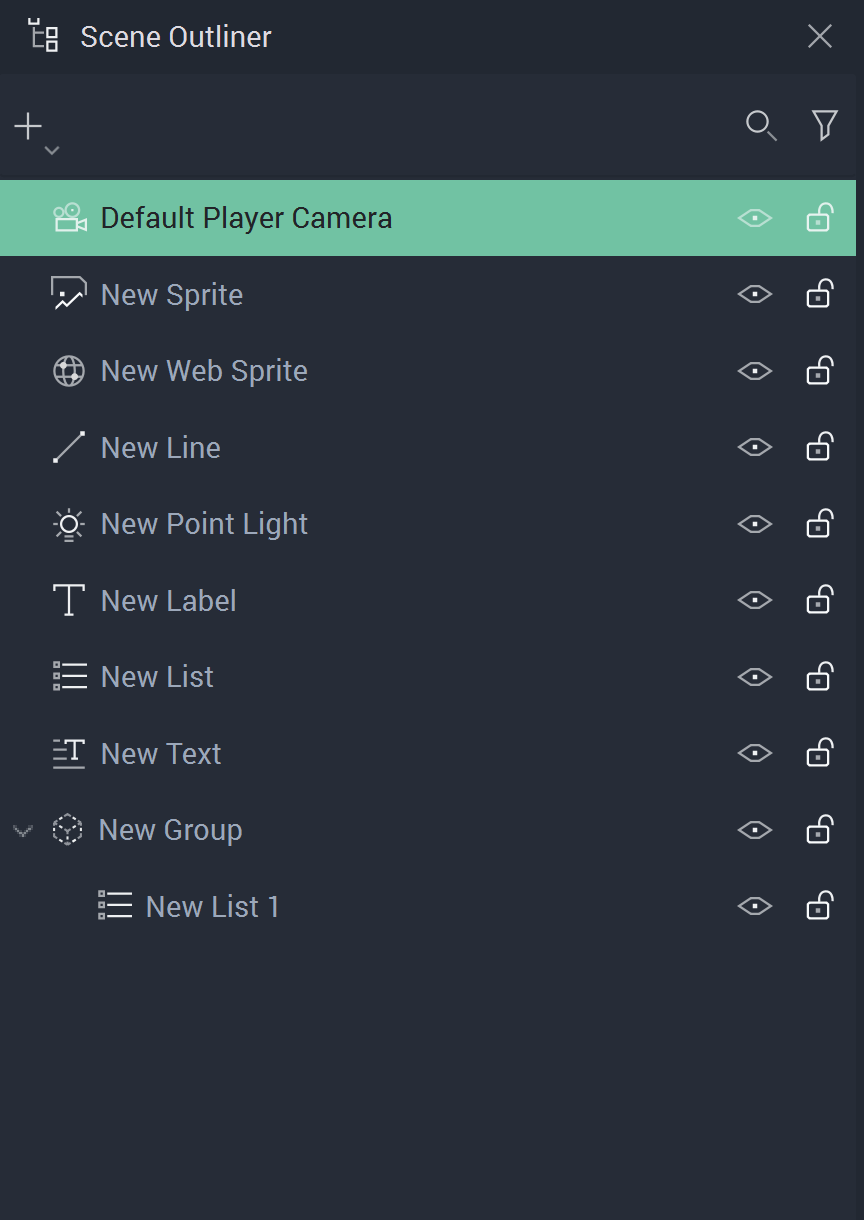
The **Scene Outliner** contains the list of every [**Object**](https://docs.incari.com/incari-studio/2024.1/objects-and-types/scene-objects) in the currently selected [**Scene**](https://docs.incari.com/incari-studio/2024.1/objects-and-types/project-objects/scene). It can be used to organize, manage, create, delete, and edit them.

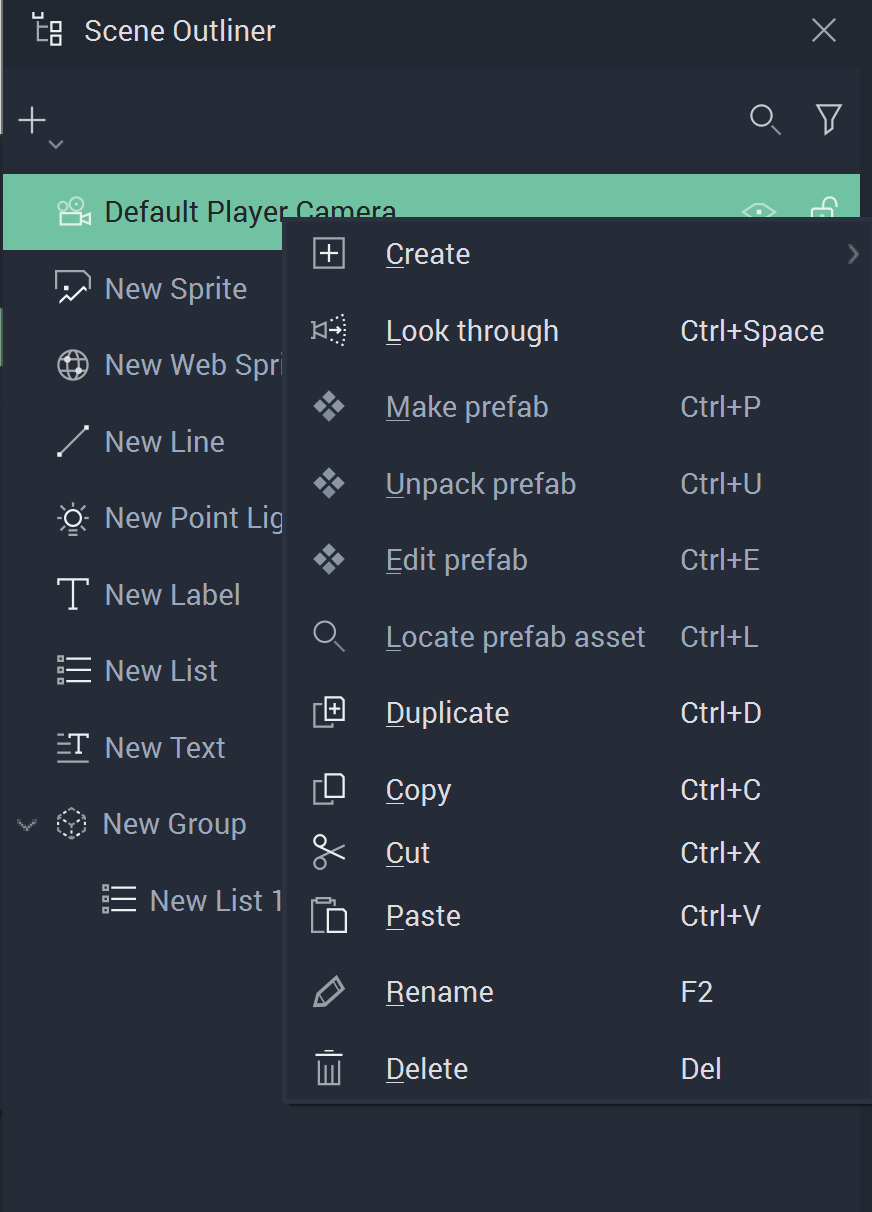
<div><figure><img src="https://4263346935-files.gitbook.io/~/files/v0/b/gitbook-x-prod.appspot.com/o/spaces%2FLnh3x8s9fddWeG8TaAug%2Fuploads%2Fgit-blob-3db8b025d538dd119c5d851aec3db76bcd834ed8%2Fsceneoutliner120241.png?alt=media" alt=""><figcaption><p>Scene Outliner.</p></figcaption></figure> <figure><img src="https://4263346935-files.gitbook.io/~/files/v0/b/gitbook-x-prod.appspot.com/o/spaces%2FLnh3x8s9fddWeG8TaAug%2Fuploads%2Fgit-blob-c7e488ff8dbfa9b3a47e3ba452d875ac7142330d%2Fsceneoutliner220241.png?alt=media" alt=""><figcaption><p>Pop-up menu with options to manage Objects.</p></figcaption></figure></div>

This page describes all the options available in the **Scene Outliner** for managing **Objects** in a **Scene**:

* [**Create**](#create)
* [**Prefabs**](#prefabs)
* [**Duplicate**](#duplicate)
* [**Copy, Cut, and Paste**](#copy-cut-and-paste)
* [**Rename**](#rename)
* [**Delete**](#delete)
* [**Show and Hide**](#show-and-hide)
* [**Search**](#search)
* [**Filter**](#filter)

## Create

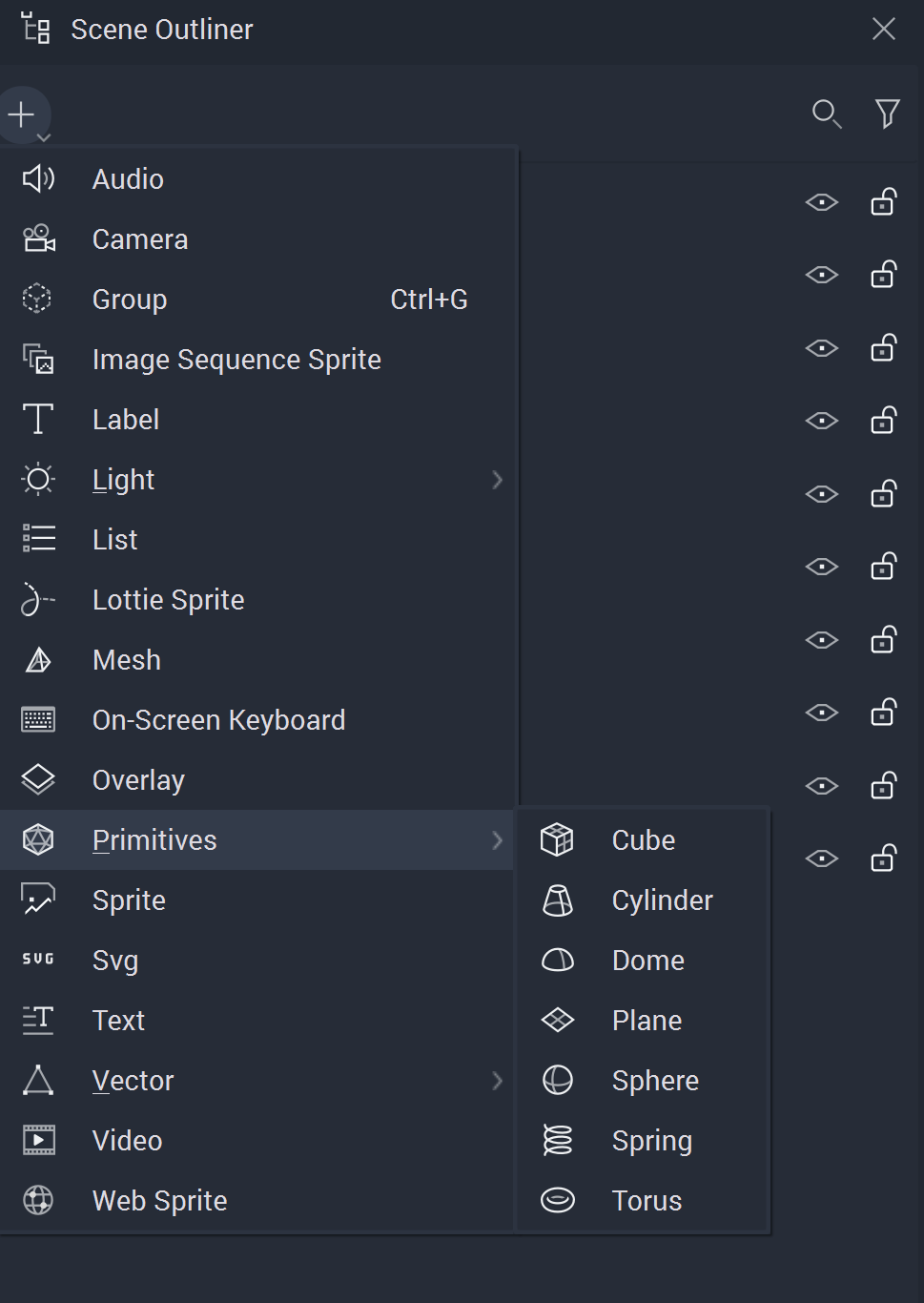
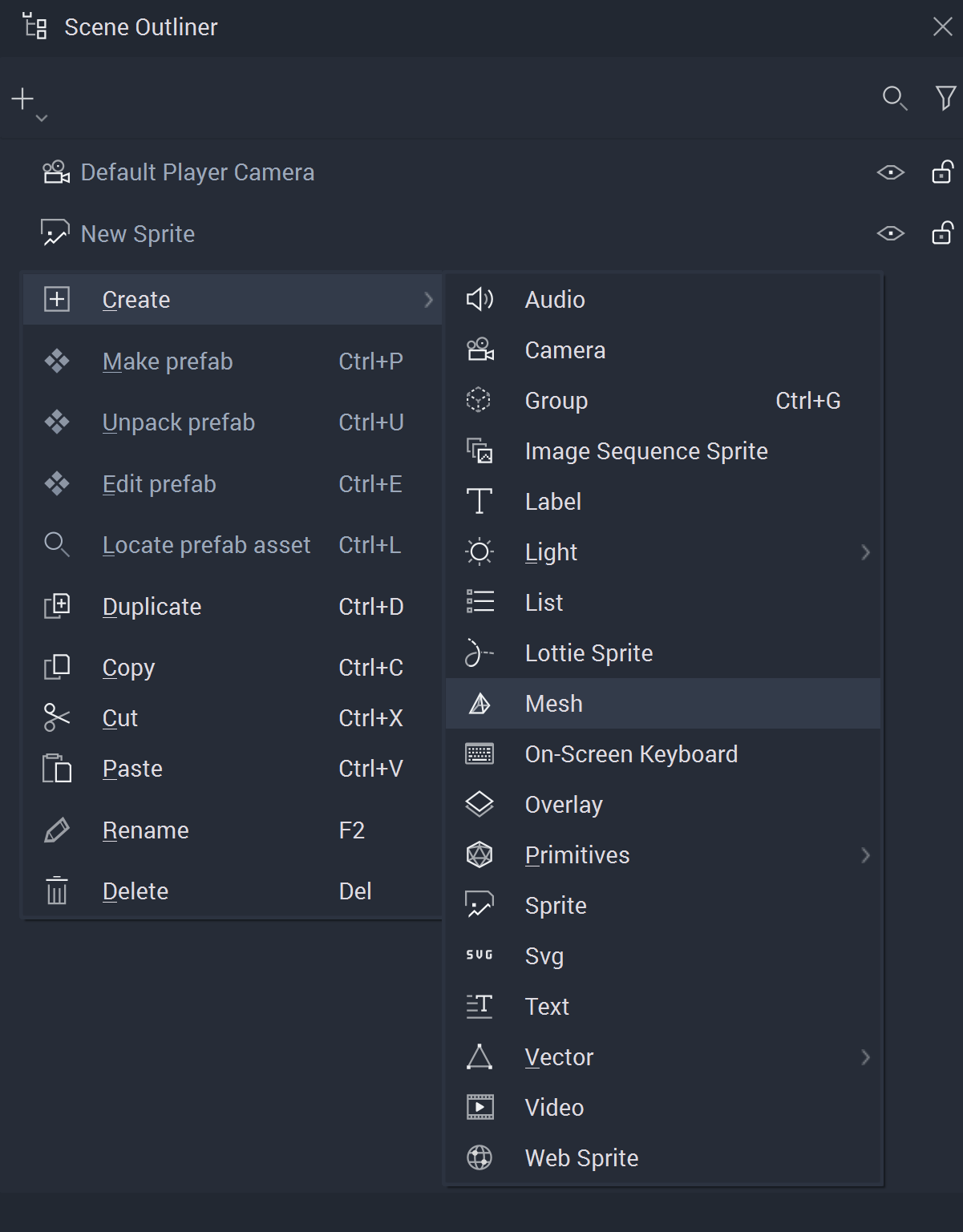
New **Objects** can be created in the following ways:

* Click on the plus ![](https://4263346935-files.gitbook.io/~/files/v0/b/gitbook-x-prod.appspot.com/o/spaces%2FLnh3x8s9fddWeG8TaAug%2Fuploads%2Fgit-blob-55a9686264982a9e5bf290bb46e76f517453c193%2FplusIcon%20\(4\)%20\(4\)%20\(4\)%20\(4\)%20\(4\)%20\(4\)%20\(4\)%20\(4\)%20\(1\)%20\(1\)%20\(1\)%20\(2\).PNG?alt=media) icon located at the top left corner of the **Scene Outliner** and select the **Object** to create.
* Right-click inside the **Scene Outliner**, select `Create` from the pop-up, and click on the **Object**.

<div><figure><img src="https://4263346935-files.gitbook.io/~/files/v0/b/gitbook-x-prod.appspot.com/o/spaces%2FLnh3x8s9fddWeG8TaAug%2Fuploads%2Fgit-blob-c07230b4e157fe50b7b1f3c4b54114de0084b4c7%2Fsceneoutliner320241.png?alt=media" alt=""><figcaption><p>Creating an Object with the plus icon.</p></figcaption></figure> <figure><img src="https://4263346935-files.gitbook.io/~/files/v0/b/gitbook-x-prod.appspot.com/o/spaces%2FLnh3x8s9fddWeG8TaAug%2Fuploads%2Fgit-blob-20993eb9aee214e2842f5a778ce834904b6130f3%2Fsceneoutliner420241.png?alt=media" alt=""><figcaption><p>Creating an Object from the pop-up menu.</p></figcaption></figure></div>

## Prefabs

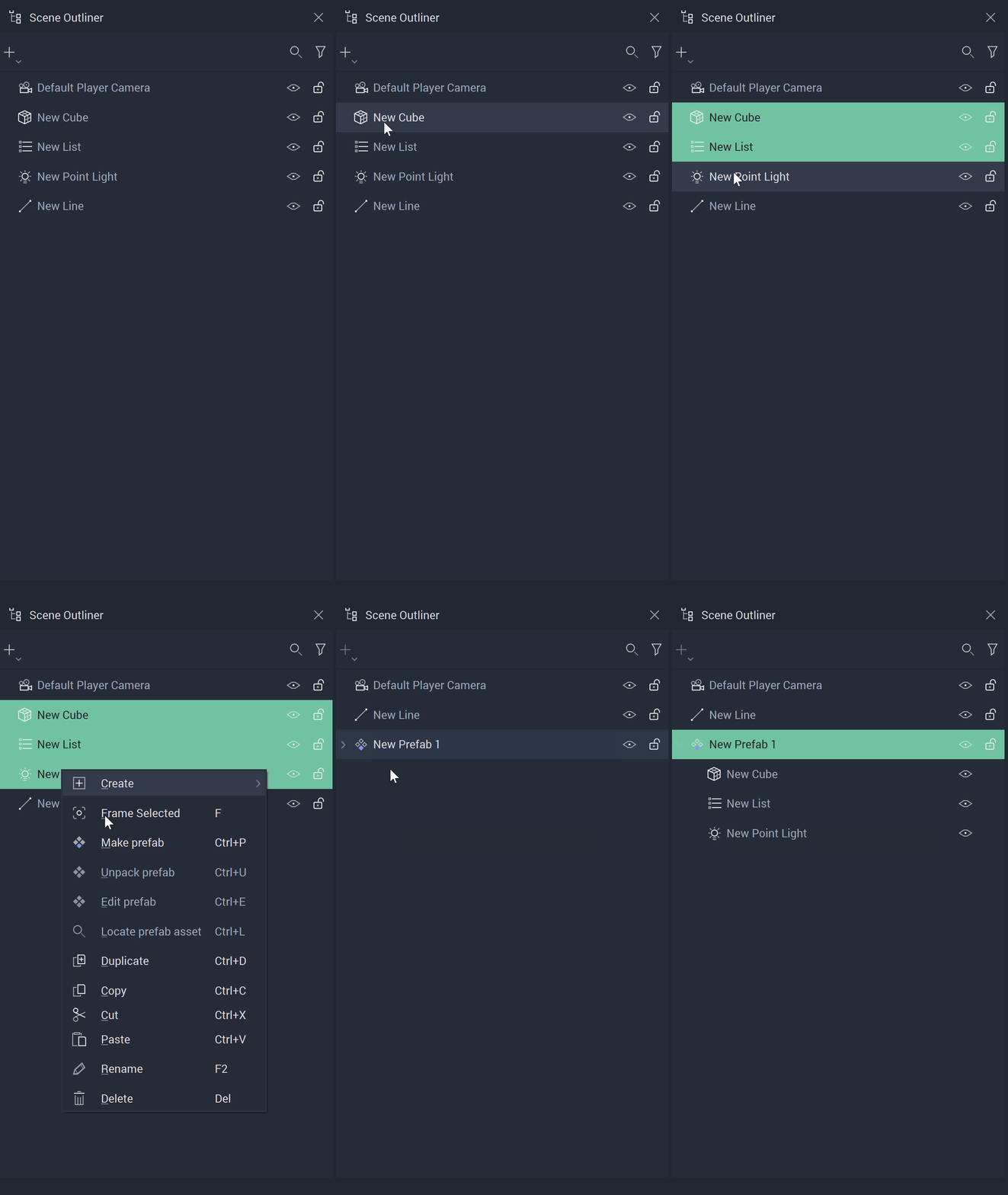
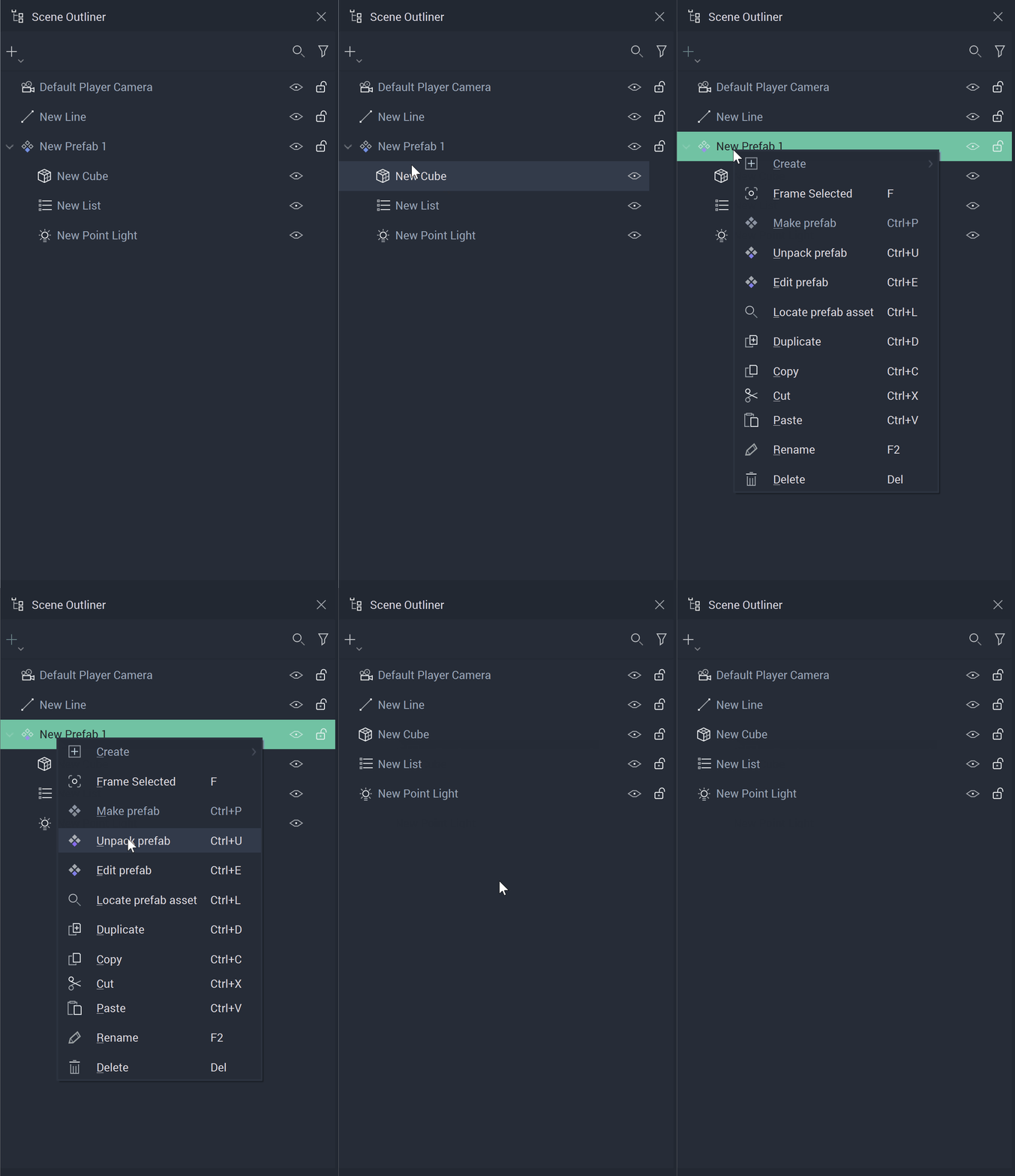
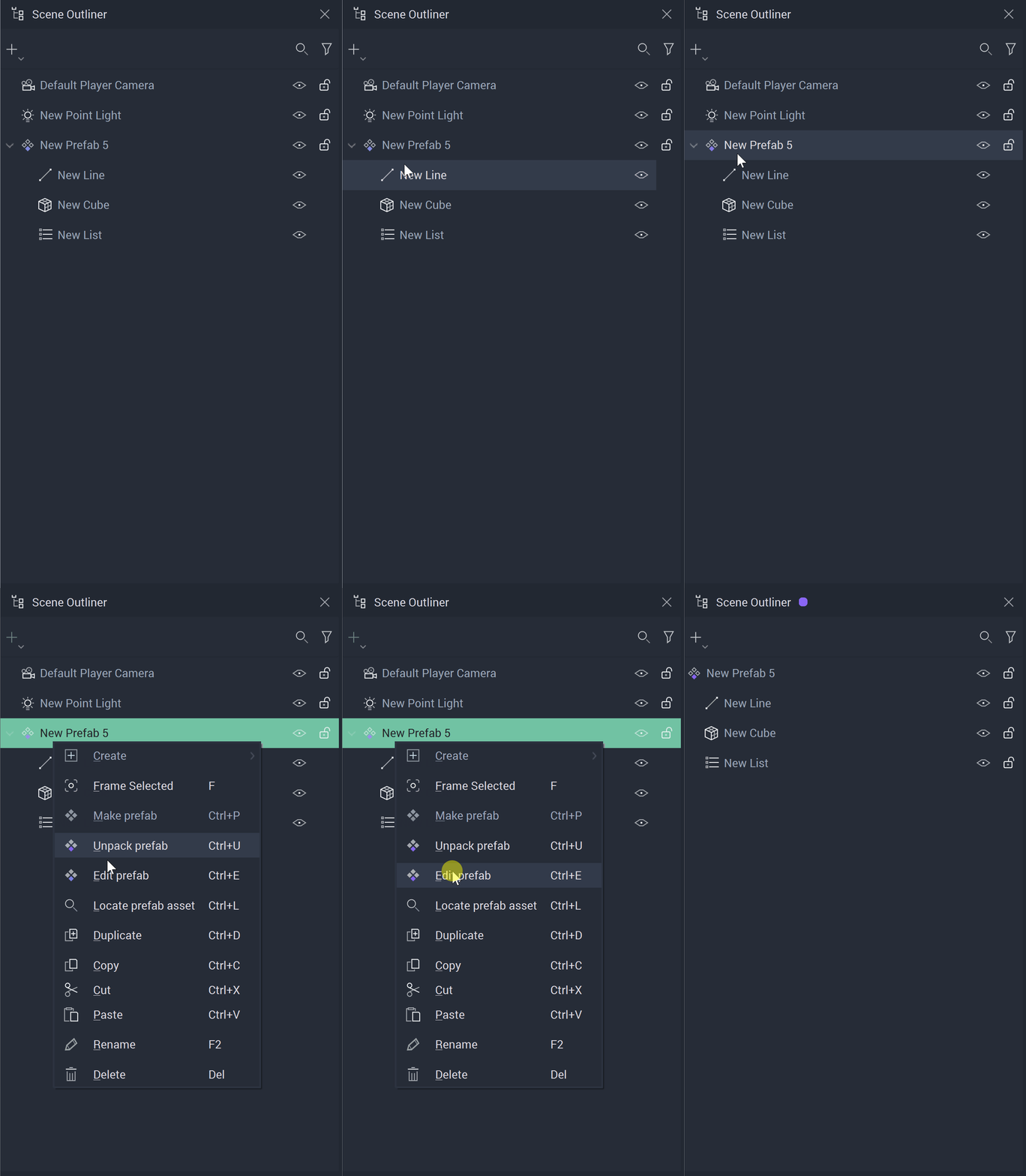
The pop-up menu that appears by right-clicking on the **Scene Outliner** offers three options relating to **Prefabs**.

* `Make prefab`: The selected **Objects** turn into a **Prefab**.
* `Unpack prefab`: The selected **Prefab Instance** is unpacked, thus the **Objects** that compose it remain in the **Scene** but no longer are a **Prefab Instance**. More information can be found [here.](https://github.com/cgi-studio-gmbh/incari-doc/blob/2024.1/objects-and-types/prefabs/creating-and-using-prefabs.md#unpacking-a-prefab)
* `Edit prefab`: This will open the **Prefab View**, where the [**Prefab Asset**](https://github.com/cgi-studio-gmbh/incari-doc/blob/2024.1/objects-and-types/prefabs/creating-and-using-prefabs.md#editing-the-prefab-asset) can be edited

<div><figure><img src="https://4263346935-files.gitbook.io/~/files/v0/b/gitbook-x-prod.appspot.com/o/spaces%2FLnh3x8s9fddWeG8TaAug%2Fuploads%2Fgit-blob-bda4f0d2889443c8107af807d60f528502b2922a%2Fsceneoutliner520241.gif?alt=media" alt=""><figcaption><p>Creating a Prefab from Objects in the Scene.</p></figcaption></figure> <figure><img src="https://4263346935-files.gitbook.io/~/files/v0/b/gitbook-x-prod.appspot.com/o/spaces%2FLnh3x8s9fddWeG8TaAug%2Fuploads%2Fgit-blob-6eff72030273fa626523a92e1138ad16b9553747%2Fsceneoutliner620241.gif?alt=media" alt=""><figcaption><p>Unpacking a Prefab.</p></figcaption></figure> <figure><img src="https://4263346935-files.gitbook.io/~/files/v0/b/gitbook-x-prod.appspot.com/o/spaces%2FLnh3x8s9fddWeG8TaAug%2Fuploads%2Fgit-blob-85f303eaa7744d2b6e0cd5b29bbe002fdb7043ef%2Fsceneoutliner720241.gif?alt=media" alt=""><figcaption><p>Creating an Object from the pop-up menu.</p></figcaption></figure></div>

For more details, see the [**Prefabs**](https://docs.incari.com/incari-studio/2024.1/objects-and-types/prefabs) section.

## Duplicate

An **Object** in the current **Scene** can be duplicated by right-clicking it on the **Scene Outliner** and selecting `Duplicate`.

![Duplicating an Object.](https://4263346935-files.gitbook.io/~/files/v0/b/gitbook-x-prod.appspot.com/o/spaces%2FLnh3x8s9fddWeG8TaAug%2Fuploads%2Fgit-blob-e7d4b5ed742ddb8894ef5fce5b31e3ce3b77a0a3%2Fsceneoutliner820241.gif?alt=media)

## Copy, Cut, and Paste

**Objects** can be cut or copied and then pasted in another **Scene**.

![Cutting, copying, and pasting Objects.](https://4263346935-files.gitbook.io/~/files/v0/b/gitbook-x-prod.appspot.com/o/spaces%2FLnh3x8s9fddWeG8TaAug%2Fuploads%2Fgit-blob-579f0ffe40cb380d794faeb9619e6e39c0d8422d%2Fsceneoutliner920241.gif?alt=media)

## Rename

**Objects** can be renamed by right-clicking an item and selecting `Rename`. You can then type a new name and press **`⏎`**/`Return` to confirm the change.

![Renaming an Object.](https://4263346935-files.gitbook.io/~/files/v0/b/gitbook-x-prod.appspot.com/o/spaces%2FLnh3x8s9fddWeG8TaAug%2Fuploads%2Fgit-blob-6f169f943abc5121435ac1d7e44a9c408bf9d63d%2Fsceneoutliner1020241.gif?alt=media)

## Delete

**Objects** can be deleted in the following ways:

* Right-click on an item and select the `Delete` button from the pop-up.
* Select an item and press `del`.

![Deleting an Object.](https://4263346935-files.gitbook.io/~/files/v0/b/gitbook-x-prod.appspot.com/o/spaces%2FLnh3x8s9fddWeG8TaAug%2Fuploads%2Fgit-blob-c4013a4bdbf63a5d99566c55ed883e4f13e1a6f2%2Fsceneoutliner1120241.gif?alt=media)

## Show and Hide

**Objects** can be shown or hidden at the start of a **Scene**.

To hide an **Object**, click on the eye icon at the right of it.

And to show a hidden **Object**, click on the crossed out eye icon at the right of it.

![](https://4263346935-files.gitbook.io/~/files/v0/b/gitbook-x-prod.appspot.com/o/spaces%2FLnh3x8s9fddWeG8TaAug%2Fuploads%2Fgit-blob-350fcbb8903c54805ab06b385def09dbe8d6b034%2Fsceneoutliner1220241.gif?alt=media)

## Search

The `Search` option allows the user to search **Objects** in a **Scene** by name. To perform a search, click the magnifying glass icon on the top right, and write the name of the **Object** to search.

![Searching Objects by name.](https://4263346935-files.gitbook.io/~/files/v0/b/gitbook-x-prod.appspot.com/o/spaces%2FLnh3x8s9fddWeG8TaAug%2Fuploads%2Fgit-blob-446838071820f159696385b3b3e876522395e131%2Fsceneoutliner1320241.gif?alt=media)

## Filter

The `Filter` option allows the user to filter **Objects** in a **Scene** by type. To apply a filter, click the filter icon on the top right, and select the types to filter from the drop-down menu. After a filter has been applied, it can be removed with the `Reset` button.

![Filtering Objects by type.](https://4263346935-files.gitbook.io/~/files/v0/b/gitbook-x-prod.appspot.com/o/spaces%2FLnh3x8s9fddWeG8TaAug%2Fuploads%2Fgit-blob-ad9b4d495250d07a4b55d68c541b9795cbaf5571%2Fsceneoutliner1420241.gif?alt=media)

## Frame Selected

Sometimes one gets lost in a **Project**. It is now easier than ever to refocus on a particular **Object**. The user just needs to locate that **Object** in the **Scene Outliner**, right-click, and select `Frame Selected`. This can also be achieved by simply pressing the `F` key.

![Frame Selected Example.](https://4263346935-files.gitbook.io/~/files/v0/b/gitbook-x-prod.appspot.com/o/spaces%2FLnh3x8s9fddWeG8TaAug%2Fuploads%2Fgit-blob-db1c2459f65d9b1bb668222fad526010c5ac7a2c%2Fsceneoutliner1520241.gif?alt=media)

## See Also

* [**Scene**](https://docs.incari.com/incari-studio/2024.1/objects-and-types/project-objects/scene)
* [**Scene Objects**](https://docs.incari.com/incari-studio/2024.1/objects-and-types/scene-objects)