# Scene Outliner

The **Scene Outliner** contains the list of every [**Object**](https://docs.incari.com/incari-studio/2022.2/objects-and-types/scene-objects) in the currently selected [**Scene**](https://docs.incari.com/incari-studio/2022.2/objects-and-types/project-objects/scene). It can be used to organize, manage, create, delete, and edit them.

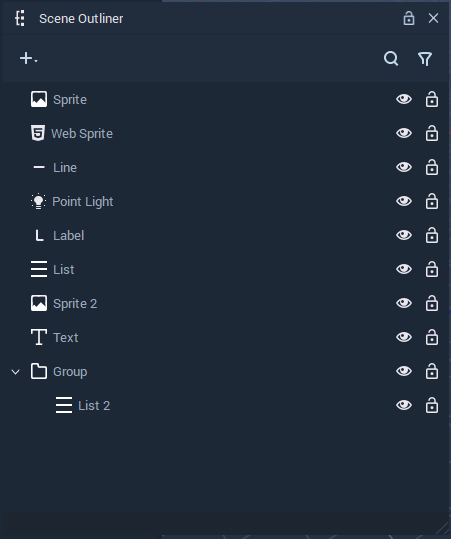
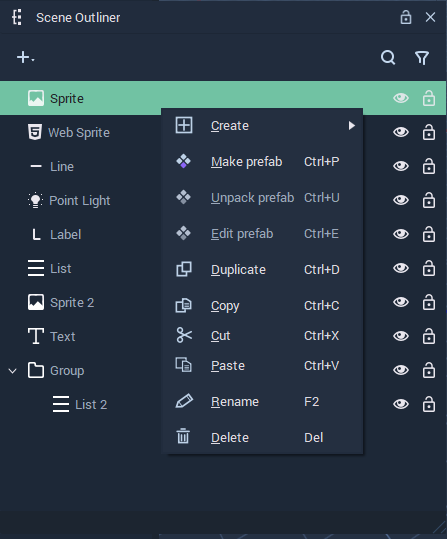
<div><figure><img src="https://4267723012-files.gitbook.io/~/files/v0/b/gitbook-x-prod.appspot.com/o/spaces%2FOEts3pBau6LMamSYhGZp%2Fuploads%2Fgit-blob-4cf68d48e0226afb40aa6f3726fa82620d8af128%2Fscene-outliner_2_1.png?alt=media" alt=""><figcaption><p>Scene Outliner.</p></figcaption></figure> <figure><img src="https://4267723012-files.gitbook.io/~/files/v0/b/gitbook-x-prod.appspot.com/o/spaces%2FOEts3pBau6LMamSYhGZp%2Fuploads%2Fgit-blob-68d3668cc40b6d8323c65a7484918f20af4dfa66%2Fscene-outliner_2_2.png?alt=media" alt=""><figcaption><p>Pop-up menu with options to manage Objects.</p></figcaption></figure></div>

This page describes all the options available in the **Scene Outliner** for managing **Objects** in a **Scene**:

* [**Create**](#create)
* [**Prefabs**](#prefabs)
* [**Duplicate**](#duplicate)
* [**Copy, Cut, and Paste**](#copy-cut-and-paste)
* [**Rename**](#rename)
* [**Delete**](#delete)
* [**Show and Hide**](#show-and-hide)
* [**Search**](#search)
* [**Filter**](#filter)

## Create

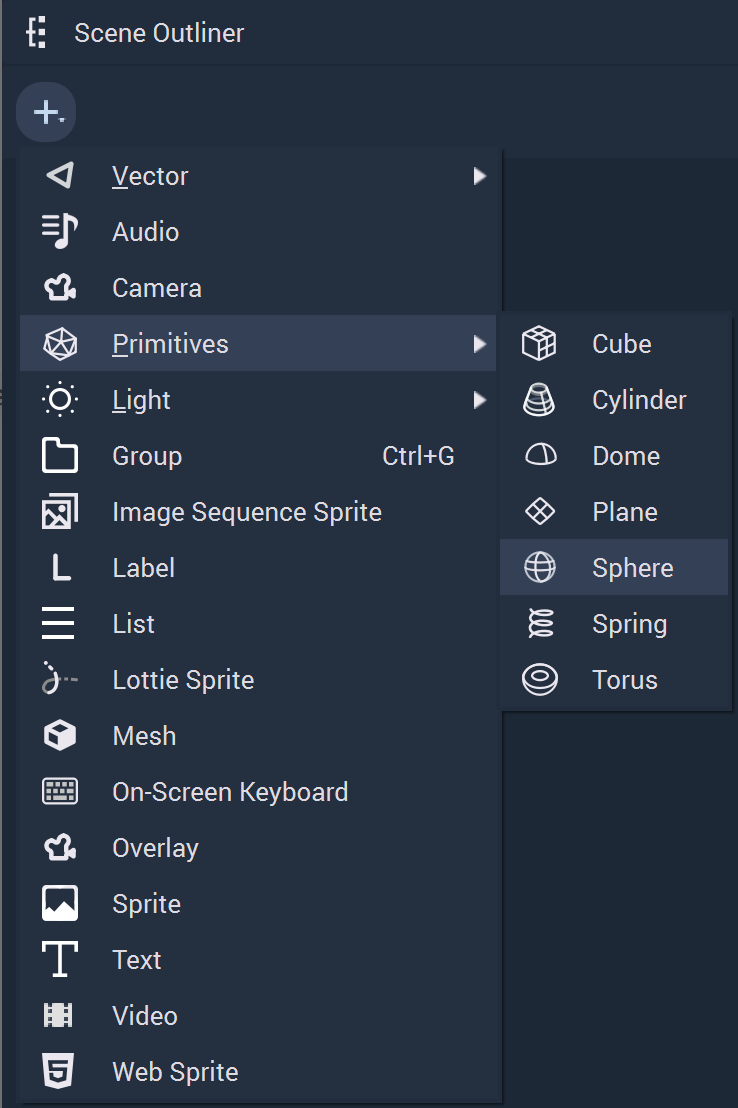
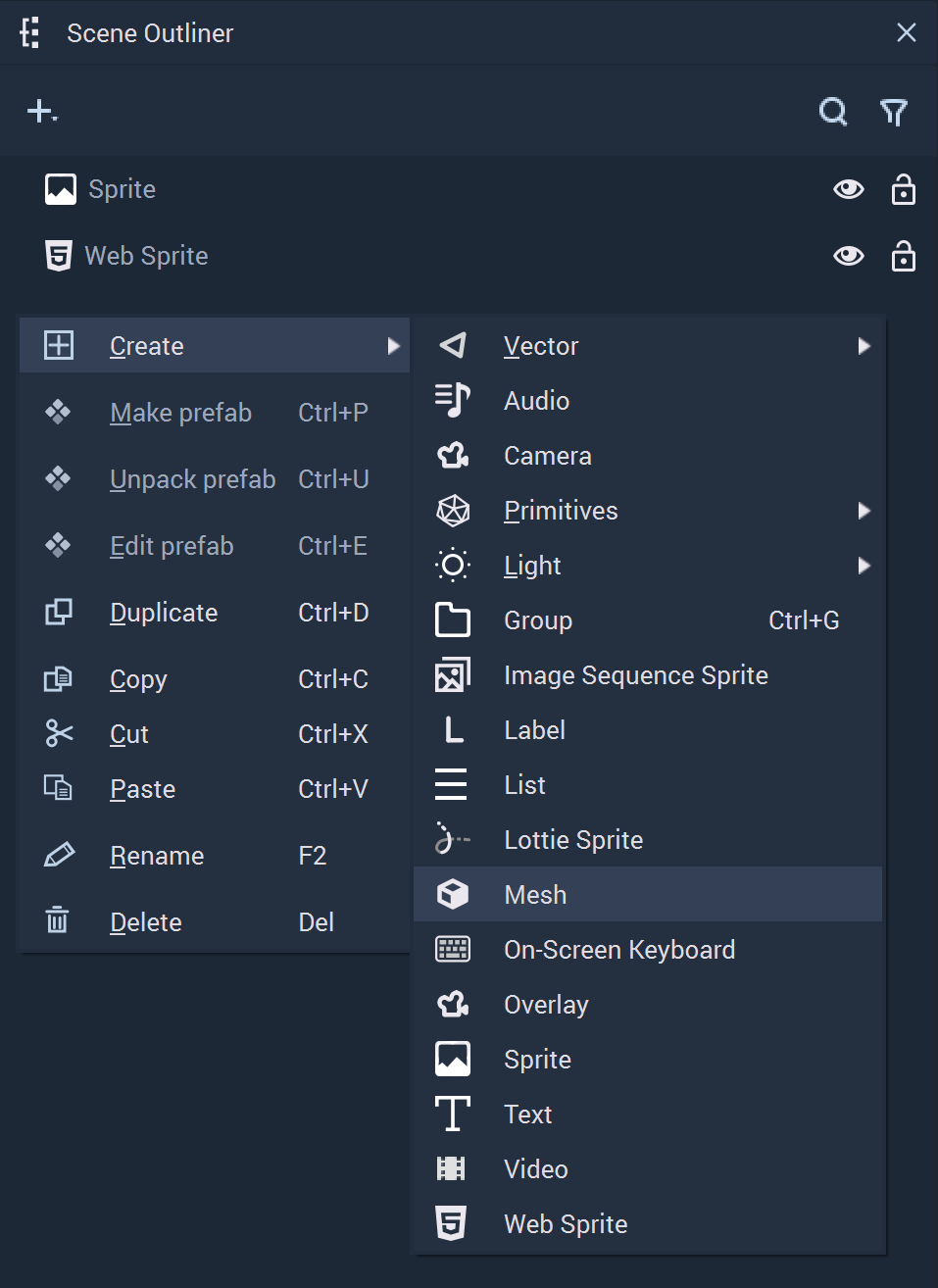
New **Objects** can be created in the following ways:

* Click on the plus ![](https://4267723012-files.gitbook.io/~/files/v0/b/gitbook-x-prod.appspot.com/o/spaces%2FOEts3pBau6LMamSYhGZp%2Fuploads%2Fgit-blob-55a9686264982a9e5bf290bb46e76f517453c193%2FplusIcon%20\(4\)%20\(4\)%20\(4\)%20\(4\)%20\(4\)%20\(4\)%20\(4\)%20\(4\)%20\(1\)%20\(2\)%20\(1\)%20\(5\).PNG?alt=media) icon located at the top left corner of the **Scene Outliner** and select the **Object** to create.
* Right-click inside the **Scene Outliner**, select `Create` from the pop-up, and click on the **Object**.

<div><figure><img src="https://4267723012-files.gitbook.io/~/files/v0/b/gitbook-x-prod.appspot.com/o/spaces%2FOEts3pBau6LMamSYhGZp%2Fuploads%2Fgit-blob-e430bc2b16665d41249f5980c3d3f268801e250c%2Fsceneoutlinercreate1again.png?alt=media" alt=""><figcaption><p>Creating an Object with the plus icon.</p></figcaption></figure> <figure><img src="https://4267723012-files.gitbook.io/~/files/v0/b/gitbook-x-prod.appspot.com/o/spaces%2FOEts3pBau6LMamSYhGZp%2Fuploads%2Fgit-blob-9783720321cc60e18fcef49db5509e6b25129d1f%2Fsceneoutlinercreate2again.png?alt=media" alt=""><figcaption><p>Creating an Object from the pop-up menu.</p></figcaption></figure></div>

## Prefabs

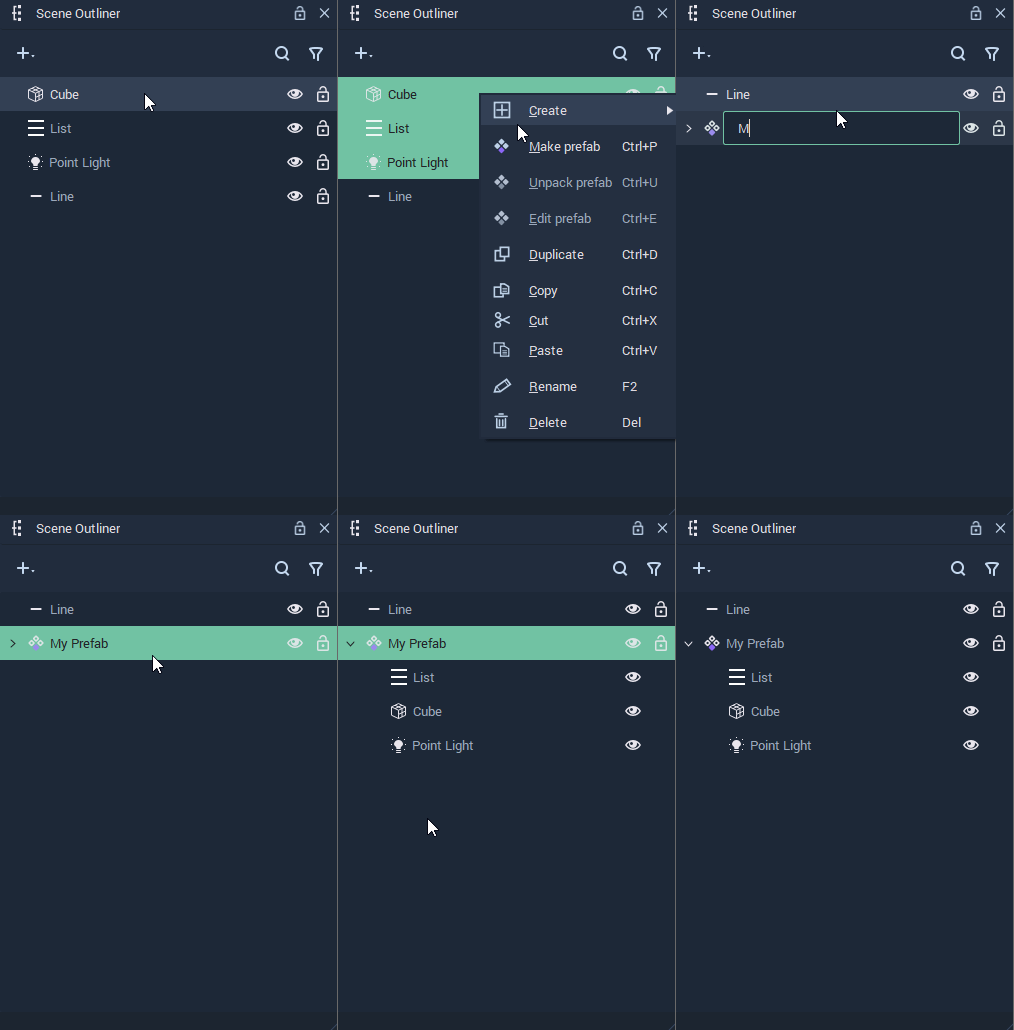
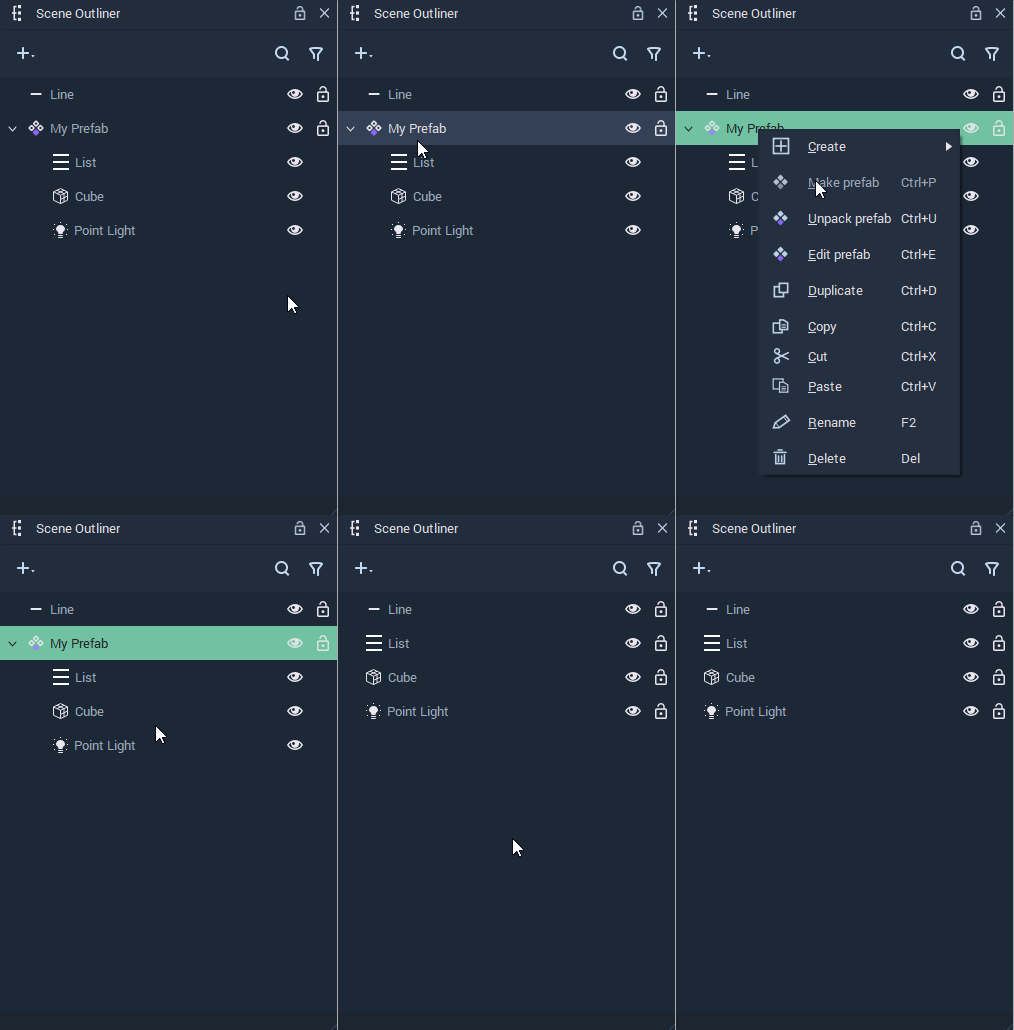
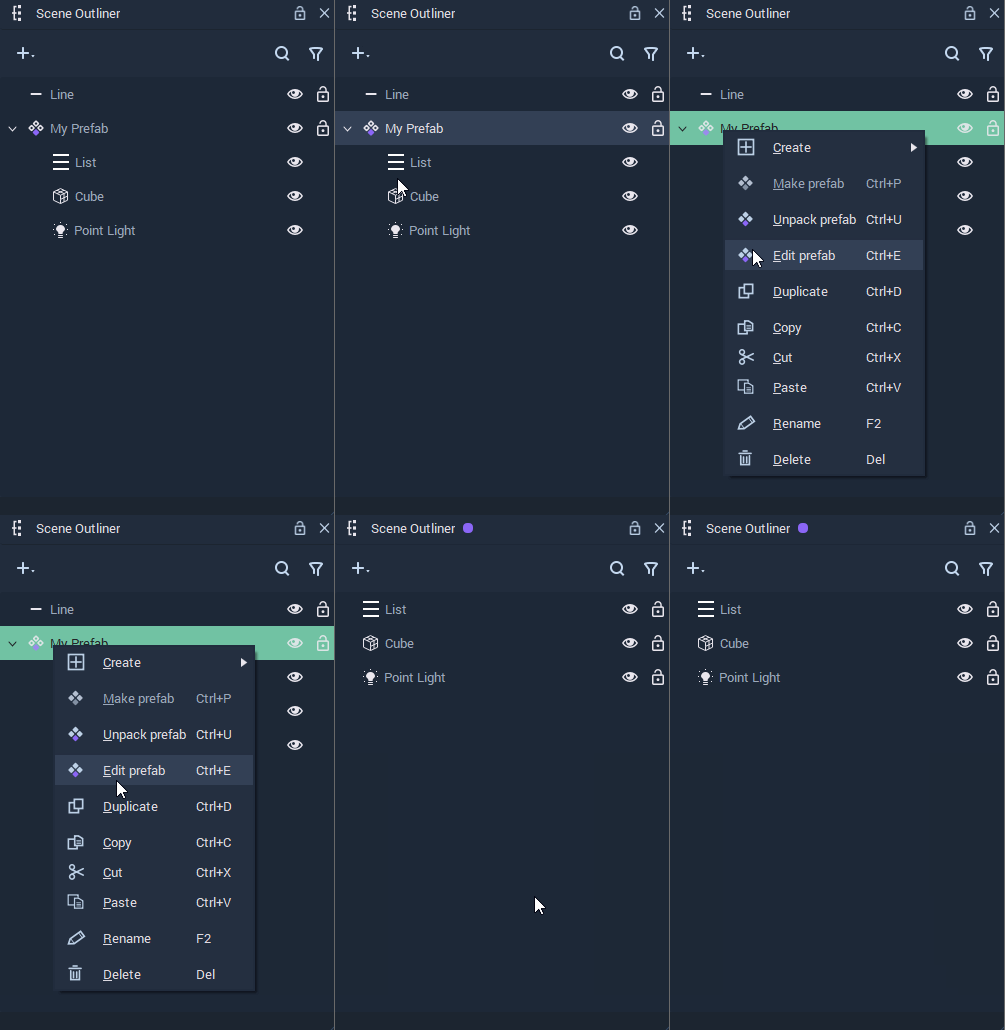
The pop-up menu that appears by right-clicking on the **Scene Outliner** offers three options relating to **Prefabs**.

* `Make prefab`: The selected **Objects** turn into a **Prefab**.
* `Unpack prefab`: The selected **Prefab Instance** is unpacked, thus the **Objects** that compose it remain in the **Scene** but no longer are a **Prefab Instance**. More information can be found [here.](https://docs.incari.com/incari-studio/2022.2/objects-and-types/prefabs/creating-and-using-prefabs#unpacking-a-prefab)
* `Edit prefab`: This will open the **Prefab View**, where the [**Prefab Asset**](https://docs.incari.com/incari-studio/2022.2/objects-and-types/prefabs/creating-and-using-prefabs#editing-the-prefab-asset) can be edited

<div><figure><img src="https://4267723012-files.gitbook.io/~/files/v0/b/gitbook-x-prod.appspot.com/o/spaces%2FOEts3pBau6LMamSYhGZp%2Fuploads%2Fgit-blob-0e05c375a9d91ede1289c3d676fbe028f986bf2c%2Fscene-outliner-makeprefab.gif?alt=media" alt=""><figcaption><p>Creating a Prefab from Objects in the Scene.</p></figcaption></figure> <figure><img src="https://4267723012-files.gitbook.io/~/files/v0/b/gitbook-x-prod.appspot.com/o/spaces%2FOEts3pBau6LMamSYhGZp%2Fuploads%2Fgit-blob-a9aec5f177d1074b39071a2e9a706b63d8bb937f%2Fscene-outliner-unpackprefab.gif?alt=media" alt=""><figcaption><p>Unpacking a Prefab.</p></figcaption></figure> <figure><img src="https://4267723012-files.gitbook.io/~/files/v0/b/gitbook-x-prod.appspot.com/o/spaces%2FOEts3pBau6LMamSYhGZp%2Fuploads%2Fgit-blob-32908c6ed4df1f13293751cffbebebd03155f19c%2Fscene-outliner-editprefab.gif?alt=media" alt=""><figcaption><p>Creating an Object from the pop-up menu.</p></figcaption></figure></div>

For more details, see the [**Prefabs**](https://docs.incari.com/incari-studio/2022.2/objects-and-types/prefabs) section.

## Duplicate

An **Object** in the current **Scene** can be duplicated by right-clicking it on the **Scene Outliner** and selecting `Duplicate`.

![Duplicating an Object.](https://4267723012-files.gitbook.io/~/files/v0/b/gitbook-x-prod.appspot.com/o/spaces%2FOEts3pBau6LMamSYhGZp%2Fuploads%2Fgit-blob-5e9332de6e3c8974fb7ae2b16d52ab8da71682d4%2Fsceneoutlinerduplicate.gif?alt=media)

## Copy, Cut, and Paste

**Objects** can be cut or copied and then pasted in another **Scene**.

![Cutting, copying, and pasting Objects.](https://4267723012-files.gitbook.io/~/files/v0/b/gitbook-x-prod.appspot.com/o/spaces%2FOEts3pBau6LMamSYhGZp%2Fuploads%2Fgit-blob-ce55fd47c56bd948e67e1e98ae8ef0f86ffe7914%2Fscene-outliner-cutcopypaste.gif?alt=media)

## Rename

**Objects** can be renamed by right-clicking an item and selecting `Rename`. You can then type a new name and press **`⏎`**/`Return` to confirm the change.

![Renaming an Object.](https://4267723012-files.gitbook.io/~/files/v0/b/gitbook-x-prod.appspot.com/o/spaces%2FOEts3pBau6LMamSYhGZp%2Fuploads%2Fgit-blob-3f66adaf47bfec975523519a0d9b9432d0134397%2Fsceneoutlinerrename.gif?alt=media)

## Delete

**Objects** can be deleted in the following ways:

* Right-click on an item and select the `Delete` button from the pop-up.
* Select an item and press `del`.

![Deleting an Object.](https://4267723012-files.gitbook.io/~/files/v0/b/gitbook-x-prod.appspot.com/o/spaces%2FOEts3pBau6LMamSYhGZp%2Fuploads%2Fgit-blob-c52a11aba2498835fb7026093f539bdca47cae9d%2Fscene-outliner-delete.gif?alt=media)

## Show and Hide

**Objects** can be shown or hidden at the start of a **Scene**.

To hide an **Object**, click on the eye icon at the right of it.

And to show a hidden **Object**, click on the crossed out eye icon at the right of it.

![](https://4267723012-files.gitbook.io/~/files/v0/b/gitbook-x-prod.appspot.com/o/spaces%2FOEts3pBau6LMamSYhGZp%2Fuploads%2Fgit-blob-12fd93031977feedfce4787652364ac6173e1e1f%2Fshow-and-hide-cropped.gif?alt=media)

## Search

The `Search` option allows the user to search **Objects** in a **Scene** by name. To perform a search, click the magnifying glass icon on the top right, and write the name of the **Object** to search.

![Searching Objects by name.](https://4267723012-files.gitbook.io/~/files/v0/b/gitbook-x-prod.appspot.com/o/spaces%2FOEts3pBau6LMamSYhGZp%2Fuploads%2Fgit-blob-4d61de061c12b3533ace1d757a4c09716f1438a2%2Fscene-outliner-search.gif?alt=media)

## Filter

The `Filter` option allows the user to filter **Objects** in a **Scene** by type. To apply a filter, click the filter icon on the top right, and select the types to filter from the drop-down menu. After a filter has been applied, it can be removed with the `Reset` button.

![Filtering Objects by type.](https://4267723012-files.gitbook.io/~/files/v0/b/gitbook-x-prod.appspot.com/o/spaces%2FOEts3pBau6LMamSYhGZp%2Fuploads%2Fgit-blob-31f00efcfa24d342a89ee5209b2c58434b06233d%2Fsceneoutlinersearch.gif?alt=media)

## See Also

* [**Scene**](https://docs.incari.com/incari-studio/2022.2/objects-and-types/project-objects/scene)
* [**Scene Objects**](https://docs.incari.com/incari-studio/2022.2/objects-and-types/scene-objects)